

How to Create Timesheets from Asana Tasks
Asana doesn't have native timesheet export. Here's how to turn your Asana tasks and time tracking into professional timesheets for clients and managers.
Asana's Timesheet Gap
Asana is excellent at organizing work — projects, tasks, sections, milestones. But when it comes to time tracking and timesheet generation, there's a notable gap.
Asana added basic time tracking in 2024, but there's no built-in way to export tracked time as a formatted timesheet. If your client or finance team needs an Excel file, you need a workaround.
Method 1: Manual Export + Formatting
Asana lets you export project data as CSV:
- Open your project in Asana
- Click the dropdown arrow next to the project name
- Select Export → CSV
- Open in Excel and filter/format
You'll need to manually add time columns and fill in hours from memory or Asana's time tracking sidebar. This defeats the purpose.
Method 2: Asana + Harvest (or Everhour)
The most popular approach is pairing Asana with a dedicated time tracker:
Harvest: Official Asana integration. Start timers directly from Asana tasks. Harvest handles the timesheet and invoicing.
Everhour: Browser extension that adds timer buttons inside Asana. More affordable than Harvest.
Pros: Deep integration, runs inside Asana UI, invoicing features
Cons: Additional subscription ($10+/user/month), another tool to manage
Method 3: Pair Asana with Your Calendar
A direct Asana connection is on the Stintt roadmap — the Asana integration page is marked coming soon, so there is no Asana pull to set up yet.
In the meantime, the practical combination for Asana users is to let Asana hold the task structure and let your calendar carry the hours:
- Connect Google Calendar or Microsoft Teams
- Block time for Asana work on your calendar, naming the block after the task
- Select a date range and preview the entries
- Export to Excel with your preferred template
Making Asana Work for Timesheets
1. Use custom fields for time estimates. Create a "Hours Estimated" number field. Compare against actual time to improve future planning.
2. Structure projects by client. One project per client makes timesheet filtering straightforward.
3. Use sections as categories. "Design", "Development", "QA" sections map naturally to timesheet categories.
4. Complete tasks when done. Completed tasks with due dates give you a timeline of work — useful for retroactive timesheet creation even without explicit time tracking.
Asana vs. Other Tools for Time Tracking
| Feature | Asana Native | Asana + Harvest | Stintt (calendar) |
|---|---|---|---|
| Time tracking | Basic (2024+) | Full (timers) | Reads calendar events |
| Timesheet view | No | Yes | Yes |
| Excel export | CSV (raw) | Yes | Yes (formatted) |
| Invoicing | No | Yes | No |
| Direct Asana pull | — | Yes | Coming soon |
| Cost | Included | +$10/user/mo | Free / $9/mo |
Combining Asana with Meetings
Asana captures project tasks but not meetings. For a complete timesheet, combine:
- Asana for task-level work
- Google Calendar or Teams for meetings and calls
- Export the calendar side via Stintt; export the Asana side from Asana's own CSV
- See how Stintt builds automatic timesheets from Google Calendar
- Set up the Google Calendar timesheet integration
- Try the free timesheet calculator
- Compare plans on Stintt pricing
Related articles
ClickUp Time Tracking to Excel: Step-by-Step Guide
ClickUp has solid built-in time tracking, but exporting it to Excel for clients or management is clunky. Here are three ways to get your ClickUp hours into a proper spreadsheet.
How to Export Microsoft Teams Meetings to a Timesheet
Your Teams calendar already tracks every meeting. Here's how to turn that data into a professional timesheet — manually, with Power Automate, or with an automated tool.
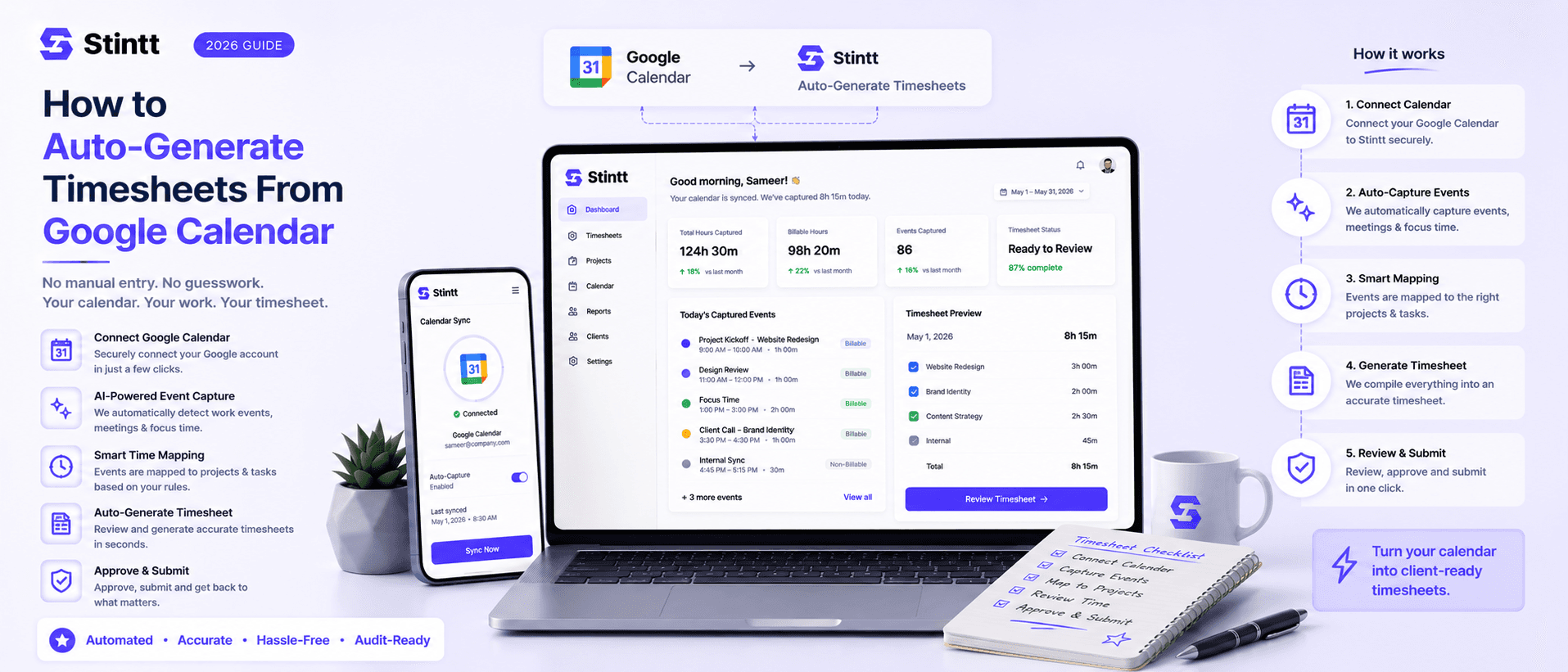
How to Auto-Generate Timesheets From Google Calendar
Most of your timesheet already exists — it's sitting in Google Calendar as client calls, project meetings, and focus blocks. The fastest way to auto-generate timesheets is to connect that calendar read-only to a tool that drafts an entry from every event and lets you approve before anything gets billed. This guide walks the calendar-to-timesheet pipeline step by step, including where the AI still needs your judgment, and when a DIY spreadsheet is honestly the better call.