

How to Auto-Generate Timesheets From Google Calendar
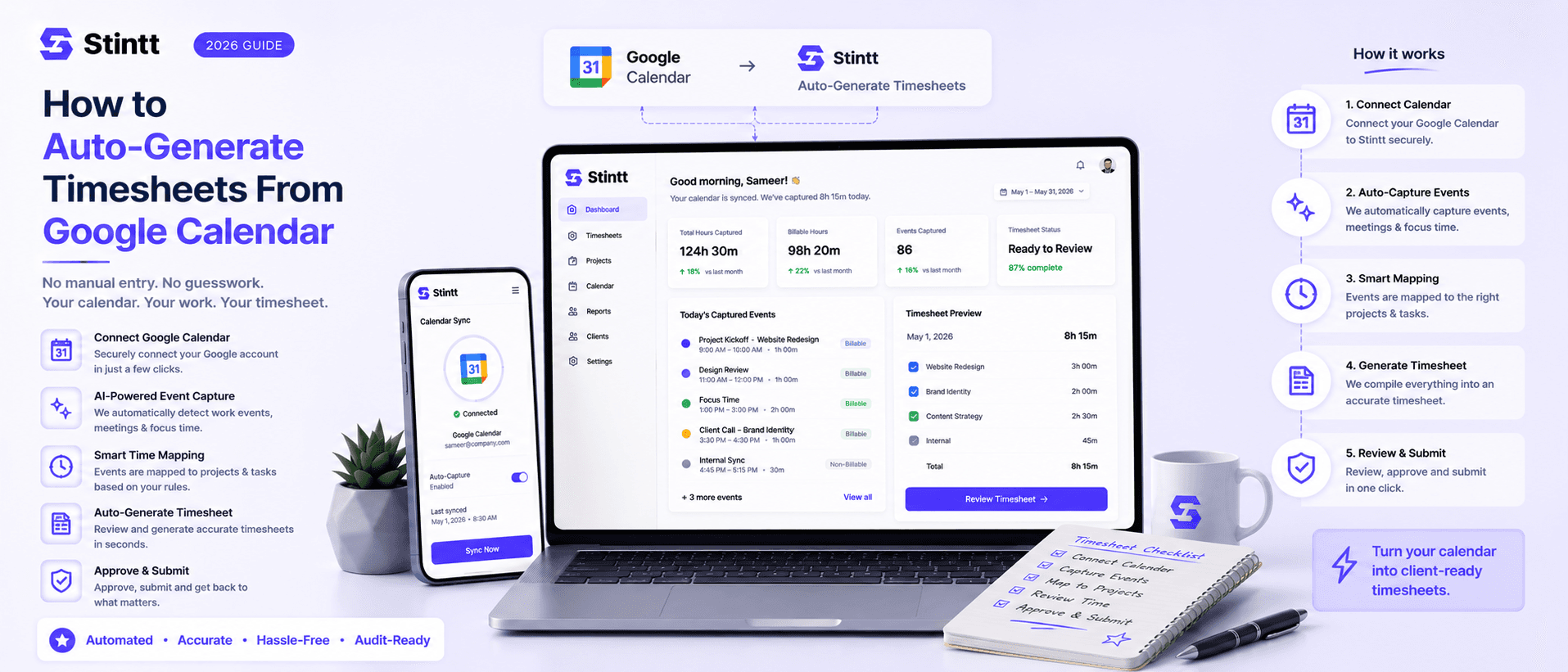
Most of your timesheet already exists — it's sitting in Google Calendar as client calls, project meetings, and focus blocks. The fastest way to auto-generate timesheets is to connect that calendar read-only to a tool that drafts an entry from every event and lets you approve before anything gets billed. This guide walks the calendar-to-timesheet pipeline step by step, including where the AI still needs your judgment, and when a DIY spreadsheet is honestly the better call.
How to Auto-Generate Timesheets From Google Calendar
Most of your timesheet already exists. It sits in Google Calendar as client calls, project meetings, focus blocks, and internal standups, which means the fastest way to auto-generate timesheets from Google Calendar is to connect it, read-only, to a tool that drafts an entry from every event and asks you to approve before anything gets billed.
We built Stintt around that model after too many Fridays spent rebuilding our own agency week from memory. This guide walks through the calendar-to-timesheet pipeline step by step, including the places where the AI still needs your judgment. It also covers when a DIY spreadsheet is honestly the better choice. If you want the underlying argument first, we made it in your calendar already knows your day.
What "auto-generated" actually means
A calendar-based tracker doesn't watch you work. It reads the events you already scheduled, drafts a timesheet entry for each one, and sorts those entries into categories: meetings, focus work, admin, breaks, and time off. No timers to start and stop. No spreadsheet to maintain.
Here's the part vendors gloss over: no AI can look at an event called "Sync w/ Dan" and know whether it was billable strategy work or a favor for a friend. Fully hands-off timesheets are a promise nobody can keep. The model that works is draft-then-approve. The software handles the mechanical work of pulling events, summing durations, categorizing, and attributing work to projects, while a human confirms the judgment calls. In Stintt, every drafted entry passes through an approval step before it counts toward billing. Managers can approve or discard entries, and once you trust the drafts, routine entries can switch to auto-approve.
Auto-generate timesheets from Google Calendar in five steps

1. Connect Google Calendar read-only. Stintt requests the calendar.readonly scope and nothing broader, so it can view events but never edit or delete them. Check the Google consent screen on any tool you evaluate; Google's scope documentation explains the difference between viewing and managing a calendar. A time tracker that asks for edit access wants more than the job requires.
2. Sync your history. Stintt pulls up to 18 months of past events. That matters more than it sounds: if you've been underbilling for months, those weeks are still sitting in your calendar, recoverable.
3. Let the AI categorize. Each event becomes a drafted entry labeled as a meeting, focus work, admin, a break, or time off. Client and project attribution works from signals like a #projectname tag in the event title or project rules you set once, and you get per-project breakdowns on the other side.
4. Capture off-calendar work from chat. The 9pm bug fix and the unscheduled client call never make it onto a calendar. A quick standup note sent from chat logs them, and they land in the same draft timesheet as everything else.
5. Review, approve, ship. Each person opens their drafted week, fixes what the AI got wrong, and approves. Approved hours export to Excel with one tab per person, CSV, or PDF using customizable templates, or feed straight into an invoice, including a GST-compliant template if you bill in India. End-of-day reminders nudge anyone who hasn't submitted, which retires the chase-everyone-on-Friday ritual.
Where you'll still edit the drafts
After months of running our own hours through this, the pattern is consistent:
- Descriptive events categorize themselves. "Acme website kickoff" lands as a meeting on the Acme project without any help.
- Vague titles need one fix. "Catch-up" gets categorized as a meeting, but no model knows which client it belongs to. Rename the recurring event once and the problem is gone for good.
- Focus work has to exist before it can be drafted. If deep work never hits your calendar, no calendar tool can see it. Blocking focus time is a habit worth building anyway; your drafts get complete, and your calendar starts defending your maker time.
- Personal events get discarded at review. The dentist appointment shows up as a draft and you discard it in a click. This is exactly what the approval step is for.
The arithmetic on end-of-week reconstruction

Two costs here, both recomputable for your own team. The visible one: six people spending 20 minutes each rebuilding their week from memory is 2 hours of admin every Friday, about 100 hours a year.
The invisible one is bigger. Human recall works by reconstructing events after the fact, and reconstruction drops details while filling gaps with plausible guesses. If each of those six people forgets one 30-minute billable call a week, then at a $100 hourly rate that's 6 × 0.5 × $100 = $300 a week, roughly $15,000 a year, gone without anyone noticing. We broke down the memory side of this in what forgetting costs your timesheet.
When DIY is the right call
If you're solo with a couple of clients and no budget, Google's own Apps Script timesheet sample syncs calendar events into a Sheet where you tag each row with a client and project. It genuinely works. The trade-off is that you own the tagging, the totals, and the script when it breaks. Automation platforms like Zapier can pipe new calendar events into other tools, but they move data without understanding it, so the categorizing stays with you. We wrote a full walkthrough of the spreadsheet route in how to auto-fill a timesheet from Google Calendar.
One honest disqualifier: if your team works in the field and you need job-site clock-ins or GPS verification, calendar-based tracking is the wrong model entirely, and you should buy a tool built for that. Calendar-first tools fit desk-based teams whose work already lives in Google Workspace: agencies, consultancies, studios, and other professional-services firms in the 5-to-25-person range.
Read-only by design
A tool that reads your team's calendars should clear a higher privacy bar than most software, and this is where you should be pickiest. Stintt takes no screenshots and logs no keystrokes. There's no app monitoring, no screen recording, no GPS. The calendar connection is view-only, so it couldn't edit or delete an event even by accident.
That stance also pays for itself in data quality. People submit honest timesheets when the tool is visibly on their side, and they game timesheets that feel like surveillance. We covered how we handle event data in why we don't store your events, and the full posture is on our security page.
What managers get once entries are approved

Approved entries feed a team dashboard on the Workspace plan: utilization and capacity per person, meeting cost analysis, focus-fragmentation scores, and AI capacity briefings that flag burnout risk and suggest rebalancing before someone quietly hits a wall. Because the timesheet and the insight layer are the same records, nobody has to maintain a second reporting system to get them.
Try it on last week's calendar
The only evaluation that matters is your own real week. Stintt's free plan needs no credit card: connect one Google Calendar, let the AI categorize up to 50 events a month, and export up to 7 days of events at a time. That's enough to see exactly what your drafts look like before you pay anything. The paid trials (7 days on Pro, 14 on Workspace) skip the credit card too; plan details are on the pricing page.
Connect your calendar and see your first drafted timesheet. Worst case, you find out how many billable hours last week actually held.
- See how Stintt builds automatic timesheets from Google Calendar
- Set up the Google Calendar timesheet integration
- Try the free timesheet calculator
- Compare plans on Stintt pricing
Related articles
ClickUp Time Tracking to Excel: Step-by-Step Guide
ClickUp has solid built-in time tracking, but exporting it to Excel for clients or management is clunky. Here are three ways to get your ClickUp hours into a proper spreadsheet.
How to Create Timesheets from Asana Tasks
Asana doesn't have native timesheet export. Here's how to turn your Asana tasks and time tracking into professional timesheets for clients and managers.
How to Export Microsoft Teams Meetings to a Timesheet
Your Teams calendar already tracks every meeting. Here's how to turn that data into a professional timesheet — manually, with Power Automate, or with an automated tool.