

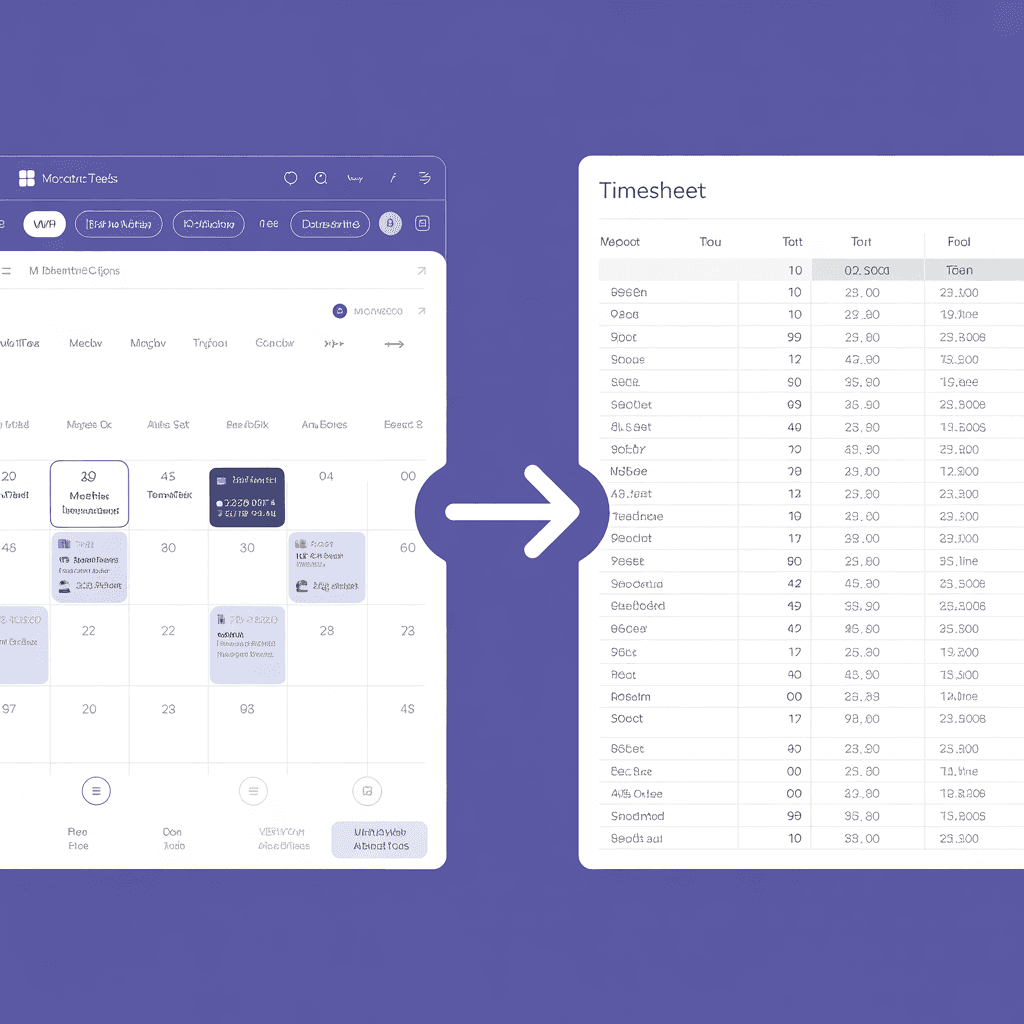
How to Export Microsoft Teams Meetings to a Timesheet
Your Teams calendar already tracks every meeting. Here's how to turn that data into a professional timesheet — manually, with Power Automate, or with an automated tool.
Your Timesheet Data Already Exists in Teams
If you work in a Microsoft 365 environment, your Outlook/Teams calendar is the most accurate record of your workday. Every Teams call, every Outlook meeting, every focus block — it's all timestamped and stored.
Yet most enterprise employees still re-type this information into a separate system every week. That's 15-20 minutes of avoidable busywork.
Here are three ways to get your Teams meetings into a timesheet.
Method 1: Manual Export from Outlook
Outlook lets you export calendar data, but the process isn't intuitive.
- Open Outlook Desktop (not web)
- Go to File → Open & Export → Import/Export
- Select Export to a file → Comma Separated Values
- Choose your Calendar folder
- Set a date range filter
- Save the
.csvfile
Verdict: Works, but messy. Budget 20-30 minutes for cleanup.
Method 2: Power Automate Flow
Microsoft Power Automate can create a recurring flow that pulls calendar events into a SharePoint list or Excel file.
A basic flow looks like:
- Trigger: Recurrence (every Friday at 4 PM)
- Action: Get calendar events for the current week
- Action: For each event, add a row to an Excel table
Trigger: Recurrence → Weekly, Friday 4PM
↓
Action: Get events (V4) → Calendar ID, Start/End of week
↓
Action: Add row to Excel table → Subject, Start, End, Duration
Pros: Automated, runs on schedule, stays within Microsoft ecosystem
Cons: Requires Power Automate license (included in some M365 plans), complex to set up, limited formatting, breaks when schema changes
Method 3: Automated Export Tool
Stintt connects to your Microsoft 365 calendar via OAuth:
- Sign in with your Microsoft account
- Select your date range
- Choose which calendars to include
- Pick a template format (standard, detailed, daily summary, etc.)
- Export to Excel
What Gets Included
| Field | Manual Export | Power Automate | Stintt |
|---|---|---|---|
| Meeting title | Yes | Yes | Yes |
| Start/End time | Yes | Yes | Yes |
| Duration | Calculate manually | Calculate manually | Auto-calculated |
| Organizer | Yes (raw SMTP) | Yes | Yes (clean name) |
| Attendees | Yes (raw list) | Limited | Yes |
| Location | Yes | Yes | Yes |
| Teams link | Yes | Yes | No (not needed) |
| Recurrence data | Yes (noisy) | Partial | Excluded (clean) |
Tips for Better Teams Timesheets
1. Name your meetings clearly. "Sync" tells your timesheet reader nothing. "Weekly Sync — Project Atlas" tells them everything.
2. Decline meetings you skip. If you decline or don't attend, the event still shows on your calendar. This inflates your timesheet. Either decline properly or review your export for phantom meetings.
3. Track non-meeting work too. Teams calendars tend to be meeting-heavy. If your timesheet only shows meetings, it looks like you work 3 hours a day. Block focus time on your calendar — "2:00-5:00 PM — Sprint Development" — so it shows up in exports.
4. Use categories in Outlook. Color-code your events (client work, internal, admin). This maps directly to timesheet categories when you export.
Which Method to Use
- One-time export: Manual Outlook export works fine
- Recurring automation within Microsoft: Power Automate
- Quick weekly timesheets with formatting: Stintt
- See how Stintt builds automatic timesheets from Google Calendar
- Set up the Google Calendar timesheet integration
- Try the free timesheet calculator
- Compare plans on Stintt pricing
Related articles
ClickUp Time Tracking to Excel: Step-by-Step Guide
ClickUp has solid built-in time tracking, but exporting it to Excel for clients or management is clunky. Here are three ways to get your ClickUp hours into a proper spreadsheet.
How to Create Timesheets from Asana Tasks
Asana doesn't have native timesheet export. Here's how to turn your Asana tasks and time tracking into professional timesheets for clients and managers.
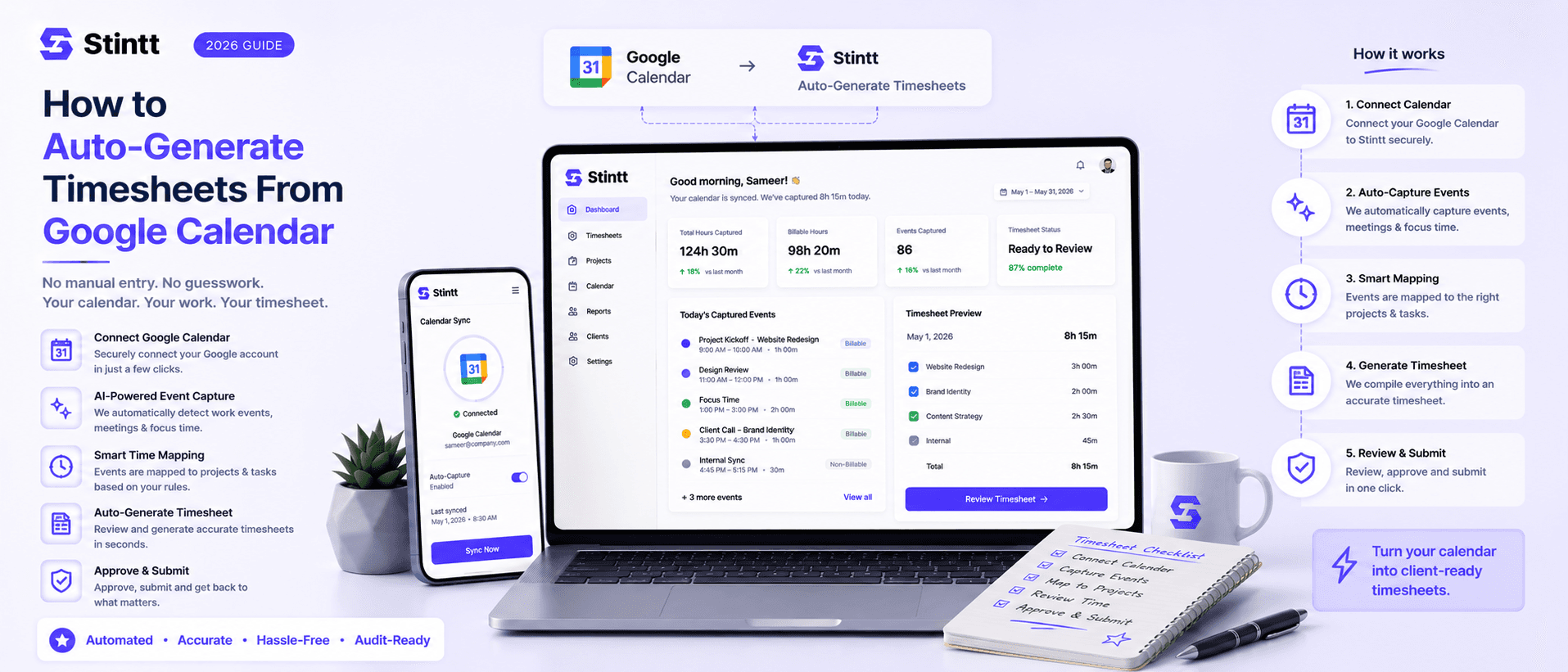
How to Auto-Generate Timesheets From Google Calendar
Most of your timesheet already exists — it's sitting in Google Calendar as client calls, project meetings, and focus blocks. The fastest way to auto-generate timesheets is to connect that calendar read-only to a tool that drafts an entry from every event and lets you approve before anything gets billed. This guide walks the calendar-to-timesheet pipeline step by step, including where the AI still needs your judgment, and when a DIY spreadsheet is honestly the better call.