

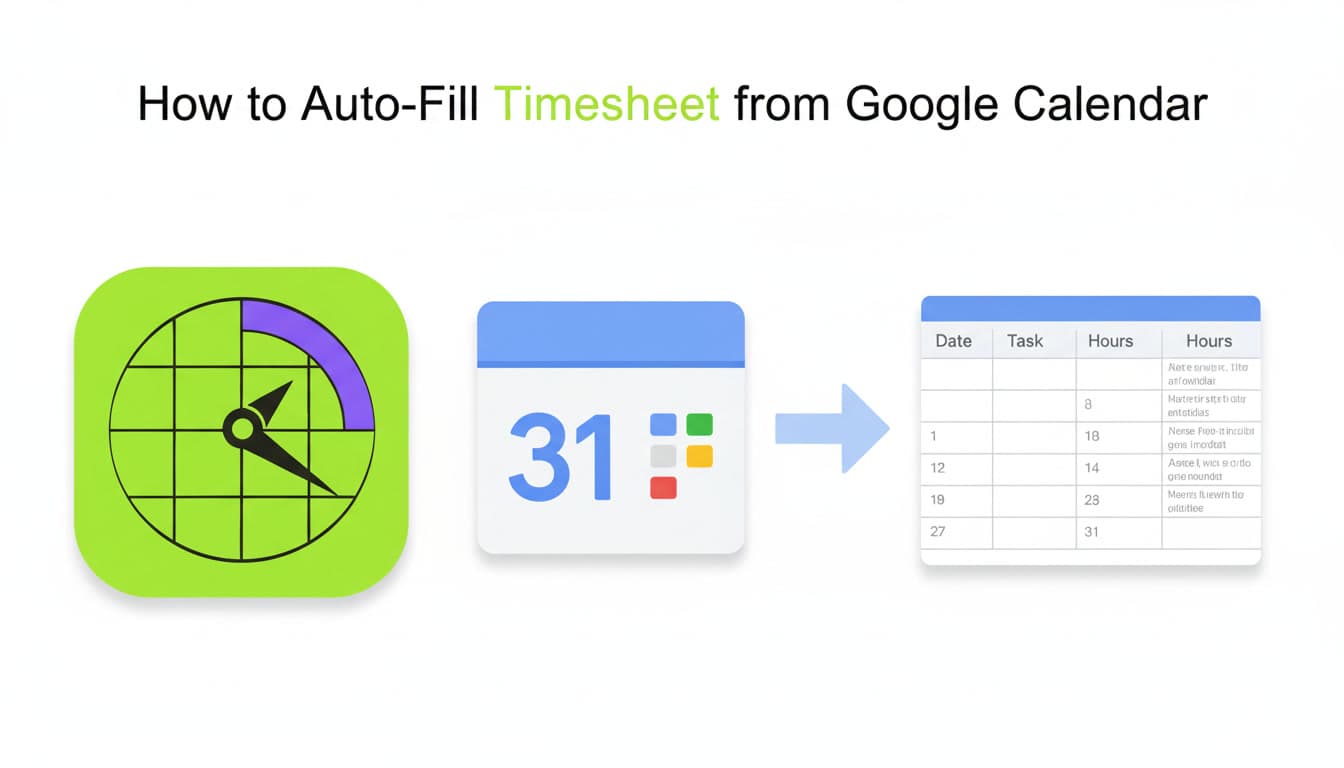
How to Auto-Fill Timesheet from Google Calendar
Tired of manually copying calendar events into your timesheet every Friday? Learn how to auto-fill your timesheet directly from Google Calendar in under 60 seconds.
How to Auto-Fill Your Timesheet from Google Calendar
Let's be honest — manually filling timesheets is the worst part of your work week. You open your calendar, squint at Tuesday's meetings, try to remember what that 2pm block was about, and spend 30 minutes copy-pasting event titles into a spreadsheet.
Every. Single. Friday.
What if your timesheet filled itself from your Google Calendar — automatically?
Why Manual Timesheets Are Broken
According to a 2025 Harvard Business Review study, knowledge workers spend an average of 4.5 hours per month on timesheet-related tasks. That is over 54 hours per year — more than a full work week — wasted on administrative busywork.
Here is what typically goes wrong:
- Memory gaps — by Friday, you cannot recall what you worked on Monday
- Rounding errors — "about 2 hours" becomes 2.5 or 1.5, and billing suffers
- Missed entries — ad-hoc calls and quick syncs slip through the cracks
- Context switching — toggling between calendar, timesheet portal, and project tracker kills focus
The Fix: Auto-Fill from Google Calendar
Your Google Calendar already contains 80-90% of the information your timesheet needs — meeting titles, durations, dates, and attendees. The missing step is a bridge that turns those events into timesheet rows.
That is exactly what Stintt does.
How It Works (3 Steps, Under 60 Seconds)
Step 1: Connect Google Calendar
Click "Connect Google Calendar" and authorize read-only access. We never create, modify, or delete your events. Your calendar data is processed entirely in your browser — nothing is stored on our servers.
Step 2: Review Your Pre-Filled Timesheet
Stintt pulls your events and organizes them by date. You will see:
- Event title mapped to task/activity
- Start time, end time, and duration auto-calculated
- Source calendar identified (work, personal, shared)
Step 3: Export to Excel
One click generates a clean .xlsx file with customizable columns. Choose from templates:
- Standard — date, task, hours
- Detailed — includes attendees, location, notes
- Client Billing — grouped by client/project with billable totals
- Daily Summary — aggregated hours per day
Why This Beats Every Other Method
vs. Manual Spreadsheets
No more copy-pasting. No more forgotten entries. Your calendar is your single source of truth.vs. Time Tracking Apps (Toggl, Clockify, Harvest)
Those require you to start and stop timers throughout the day. If you forget to start a timer (and you will), the data is gone. Stintt works retroactively — it reads what already happened.vs. Calendar Plugins
Most calendar plugins only export raw event data. Stintt adds smart categorization, customizable templates, and multi-source aggregation (Google Calendar + Teams + Jira + ClickUp in one sheet).Privacy First: Processed in Your Browser
This is the part most people do not expect: generating a timesheet happens client-side. Events are fetched from your calendar to your device, and the mapping, grouping and Excel generation all happen there — nothing is stored by default. We use read-only OAuth access, and you can revoke it anytime from your Google account settings.
Turn on an optional feature that has to run without you — scheduled email delivery, cross-device sync, or team tracking — and we do store an encrypted token so the job can run. You are told when, you consent explicitly, and you can revoke it. Why we don't store your events sets out the full architecture.
Who Is This For?
- Freelancers tracking billable hours across multiple clients
- Consultants who bill by the hour and need accurate records
- Remote employees filing weekly timesheets for HR or project managers
- Agency teams juggling multiple client projects simultaneously
- Anyone who has ever thought, "there has to be a better way"
Get Started in 60 Seconds
Stop wasting your Friday afternoons on timesheets. Connect your Google Calendar for free and let your calendar do the work.
Your timesheet is already written — you just have not exported it yet.
Stintt offers a free plan with 7-day exports from Google Calendar. Upgrade to Pro for date ranges up to a full year, every live integration, AI categorization, and custom templates — $9/month.
- See how Stintt builds automatic timesheets from Google Calendar
- Set up the Google Calendar timesheet integration
- Try the free timesheet calculator
- Compare plans on Stintt pricing
Related articles
ClickUp Time Tracking to Excel: Step-by-Step Guide
ClickUp has solid built-in time tracking, but exporting it to Excel for clients or management is clunky. Here are three ways to get your ClickUp hours into a proper spreadsheet.
How to Create Timesheets from Asana Tasks
Asana doesn't have native timesheet export. Here's how to turn your Asana tasks and time tracking into professional timesheets for clients and managers.
How to Export Microsoft Teams Meetings to a Timesheet
Your Teams calendar already tracks every meeting. Here's how to turn that data into a professional timesheet — manually, with Power Automate, or with an automated tool.