

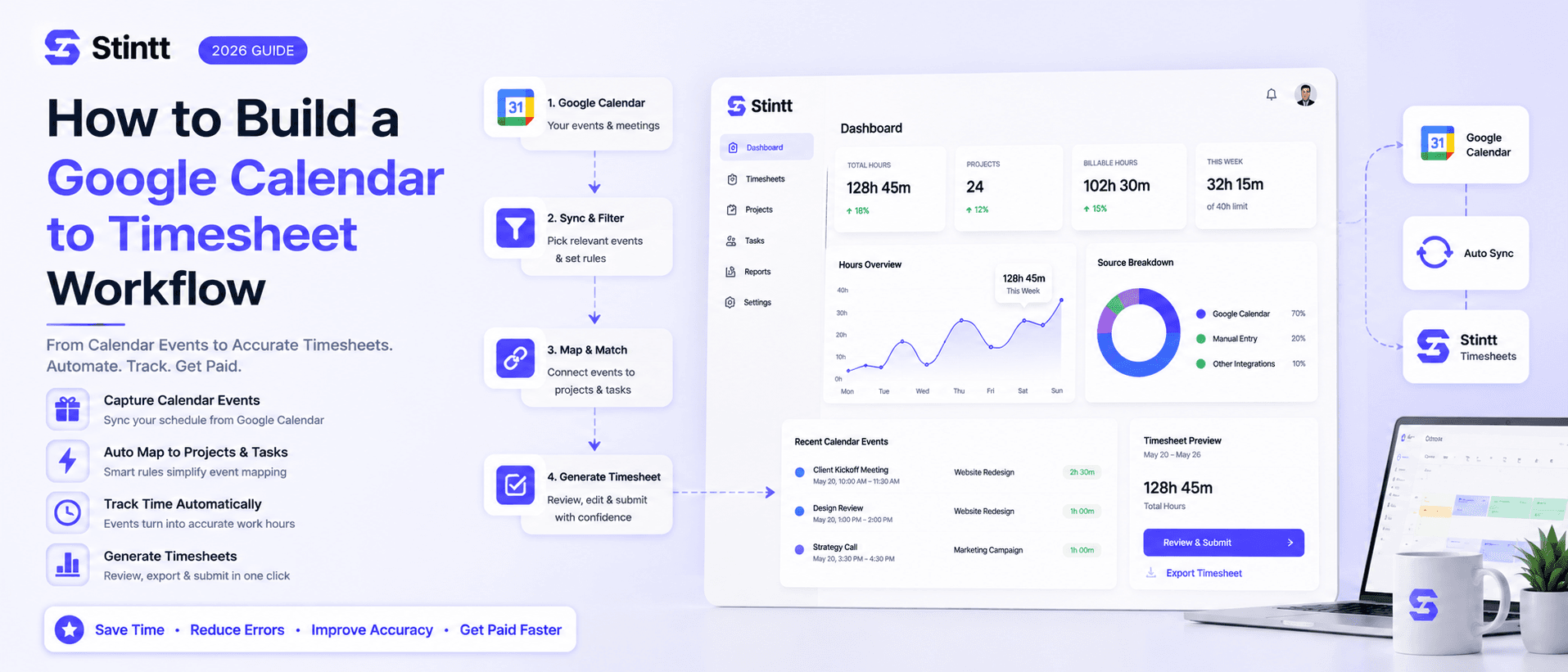
How to Build a Google Calendar to Timesheet Workflow
There are three realistic ways to turn Google Calendar into timesheets: an Apps Script you maintain yourself, a Zapier pipeline, or a managed tool that drafts and asks for approval. This guide walks through the setup steps, the cost model behind each, and the maintenance bill that only shows up three months in — because the real question isn't features, it's who fixes the workflow when it breaks.
How to Build a Google Calendar to Timesheet Workflow
There are three realistic ways to build a Google Calendar to timesheet workflow: copy Google's own Apps Script sample and maintain it yourself, wire a Zapier pipeline into a spreadsheet, or connect a managed tool that drafts the timesheet and asks a human to approve it. Which one you should pick depends less on features than on a question most guides skip: who fixes the workflow when it breaks?
Below are the actual setup steps for all three paths, the cost model behind each, and the maintenance bill that only shows up three months in.
Why a Google Calendar to timesheet workflow beats memory

For a services team, the calendar already records most of the day as it happens: client calls, internal reviews, and the focus blocks in between. A timesheet reconstructed on Friday is a guess about Tuesday. The arithmetic on that guesswork adds up quickly: six people spending 20 minutes each on Friday reconstruction is two hours a week, roughly 100 hours a year. We broke down the full cost of that habit in what 26 hours a year of timesheeting actually costs you.
So the design rule for every workflow in this guide: pull from a record made at the time of the work. The calendar is the closest thing most teams have. The only decision left is how events become billable entries.
Path 1: Google Apps Script, free and fully yours
Google publishes an official calendar-to-timesheet Apps Script sample that syncs events into a Google Sheet. Setup looks like this:
- Open the sample page and make a copy of the template spreadsheet. The script travels with the copy, so there's nothing to install.
- Open the new myTime menu in your sheet and choose Settings. Authorize the script when prompted; it needs access to your calendar and the sheet.
- In the sidebar, tick the calendars you want synced and set how many days back and forward to pull.
- Fill in the Categories sheet with your customers, projects, and tasks.
- Run Sync calendar events, then assign a customer, project, and task to each imported row using the dropdown menus.
Know what you're signing up for: step 5 never goes away. Every event, every week, categorized by hand, and each person works in their own copy of the sheet. There's no approval step and no consolidated team view unless you build one. The script is also now yours. When authorization expires or a sync quietly stops running, you're the support desk.
Pick this if you're a solo consultant who wants internal records, likes poking at scripts, and wants to pay nothing.
Path 2: Zapier, no code, priced per event
If you already run Zapier, the calendar-to-sheet pipeline takes four steps:
- Create a Zap with Google Calendar's Event Ended trigger. It fires once the event's end time has passed rather than at creation, so you log each event after it's actually over.
- Add a filter step to skip events you declined and all-day blocks like holidays.
- Add the action: Create Spreadsheet Row in Google Sheets, or an entry in whatever tracker you feed. Map the event title, start, end, and duration.
- If you're writing into a system where duplicates matter, use a search-then-create pattern so edited events update the existing row instead of doubling up.
The real limitation is that Zapier moves data without understanding it. A filter can't tell a billable client call from an internal standup, so categorization happens downstream, by hand or through keyword rules that break on the first creatively named event. Failed Zaps also fail quietly. Unless someone owns checking the Zap history, you discover the gap while preparing an invoice.
Pick this if calendar data needs to land inside another system you already operate, and someone on your team genuinely enjoys tending automations.
Path 3: A managed tool that drafts, then asks for approval

This is the path we built Stintt for, so read this section knowing where I stand. The workflow:
- Connect your Google Calendar. Stintt uses read-only OAuth (the
calendar.readonlyscope), which means it can see events but can't edit or delete anything. Details are on the security page. - Stintt drafts timesheet entries from your events and categorizes them with AI: client meetings, focus work, admin, breaks, time off. It can pull up to 18 months of history, so you can backfill the quarter you never logged.
- Attribute work to projects with a #tag in the event title or with project rules, and get per-project breakdowns.
- Each person reviews their drafted entries and approves them. Managers can approve or discard, and there's an auto-approve option once you trust the drafts. Nothing counts toward billing without human sign-off.
- Export the approved hours to Excel, CSV, or PDF, or generate an invoice from them directly.
There's a free plan: one calendar, exports covering up to 7 days of events, and AI categorization for 50 events a month. That's enough to run one real week through it and judge the drafts yourself. For the click-by-click version, see the walkthroughs on auto-filling a timesheet from Google Calendar and setting up the Google Calendar timesheet integration.
To be straight about fit: a calendar-based workflow only works if your team actually lives in Google Calendar. If you run field crews who clock in on-site at job sites, you want a punch-clock app, not this. And if half the team's work never touches the calendar and they won't do standups, the drafts will be thin no matter which tool draws them.
Choosing between the three
| Apps Script | Zapier | Stintt | |
|---|---|---|---|
| Setup | Copy a sheet per person | One Zap plus filters | Connect a calendar |
| Categorization | Manual dropdowns, every row | Keyword rules or by hand downstream | AI drafts, a human approves |
| Team view | Build it yourself | Whatever you pipe data into | Built in, with approvals |
| Cost model | Free | Per task, scales with event volume | Subscription (free plan available) |
| Who maintains it | You | You | The vendor |
One more line item most comparisons skip: maintenance. The Apps Script breaks when someone changes a password or leaves the company with the master sheet. The Zap drifts when a column gets renamed. A managed tool makes all of that the vendor's problem, and that transfer is most of what a subscription buys.
Whichever path you pick, make the calendar worth syncing
Every workflow above inherits the quality of the calendar underneath it. Four habits that cost minutes and pay for themselves:
- Name events so a stranger could bill them. "Acme sprint review", not "catch-up". Put the client name or a #project tag in the title.
- Block focus work as real events. Deep work that isn't on the calendar is invisible to every method on this page.
- Clean up what didn't happen. Decline meetings you skip and delete blocks you abandoned, or they'll surface as hours you never worked.
- Capture off-calendar work the same day. A one-line note now beats a Friday guess. Entries logged days later are fiction with formatting.
Run one week through it
Pick a path, run last week's calendar through it, and compare the output to what you would have submitted from memory. The difference is the size of your problem, measured in hours you can count.
If the answer is "more than I thought" and you'd rather not own scripts or Zaps, try Stintt free. Connecting a calendar takes less time than one Friday reconstruction, and the first thing you'll see is last week, already drafted and waiting for your approval.
- See how Stintt builds automatic timesheets from Google Calendar
- Set up the Google Calendar timesheet integration
- Try the free timesheet calculator
- Compare plans on Stintt pricing
Related articles
ClickUp Time Tracking to Excel: Step-by-Step Guide
ClickUp has solid built-in time tracking, but exporting it to Excel for clients or management is clunky. Here are three ways to get your ClickUp hours into a proper spreadsheet.
How to Create Timesheets from Asana Tasks
Asana doesn't have native timesheet export. Here's how to turn your Asana tasks and time tracking into professional timesheets for clients and managers.
How to Export Microsoft Teams Meetings to a Timesheet
Your Teams calendar already tracks every meeting. Here's how to turn that data into a professional timesheet — manually, with Power Automate, or with an automated tool.