

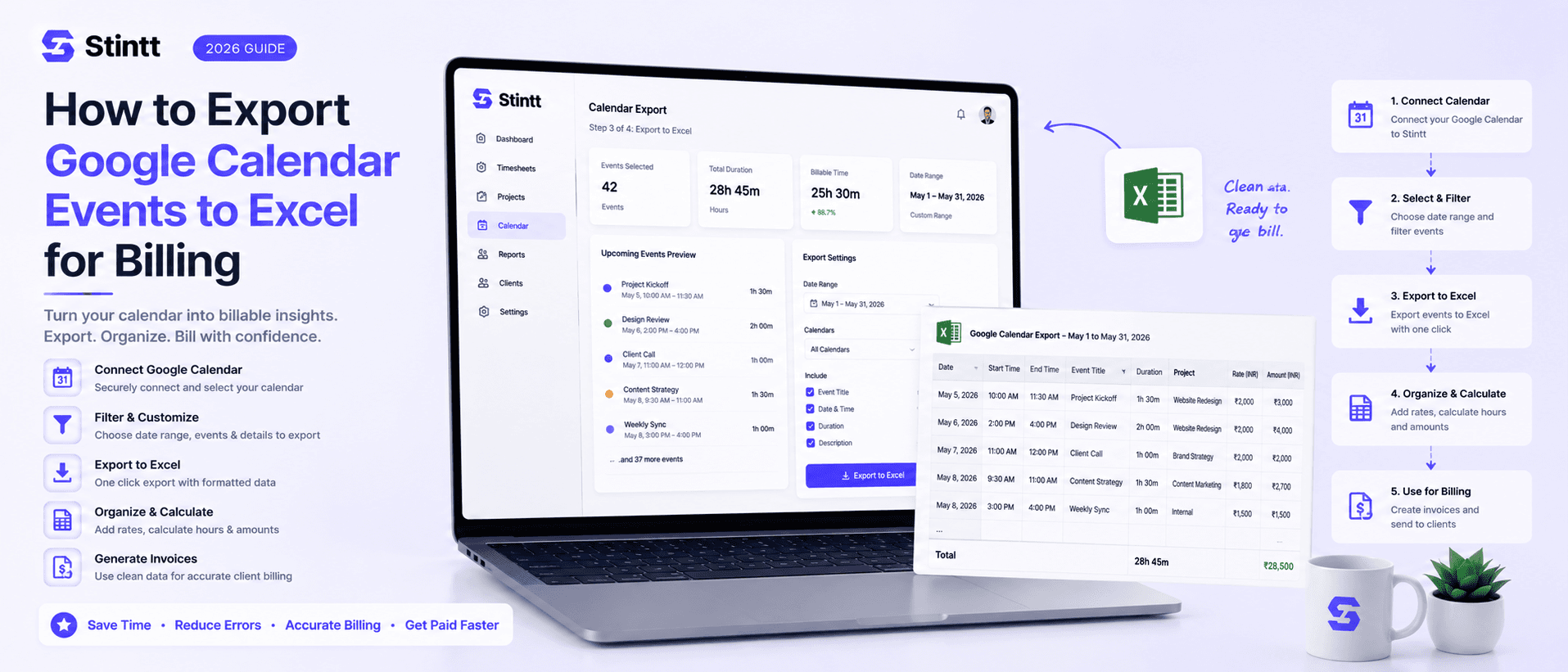
How to Export Google Calendar Events to Excel for Billing
There are two dependable ways to export Google Calendar events to Excel: the built-in ICS export and a short Apps Script that writes your events to a Sheet. Both are walked through step by step — but if you're exporting for billing, there's a recurring-event trap that turns twelve weekly calls into one, quietly shrinking every invoice. Here's how each route works, and when to skip the spreadsheet entirely.
How to Export Google Calendar Events to Excel for Billing
There are two dependable ways to export Google Calendar events to Excel: the built-in ICS export, which takes about five clicks and produces a file Excel can't actually read as a table, and a short Apps Script that writes your events into a Google Sheet you then download as .xlsx. Both are walked through step by step below.
But if you're exporting for billing, know the trap before you start. Google's native export stores each recurring event as a single entry. A weekly client call exported this way looks like one 45-minute meeting instead of twelve. That mistake doesn't announce itself. It just quietly shrinks your invoice.
Method 1: export Google Calendar events to Excel via ICS
This is Google's official route, documented in their export guide:
- Open Google Calendar on a computer (export isn't available in the mobile app).
- In the left sidebar under My calendars, hover over the calendar you want, click the three dots, then Settings and sharing.
- Under Calendar settings, click Export calendar. An .ics file downloads.
Now open that .ics file in Excel and you'll see the problem: it's plain text, a wall of BEGIN:VEVENT, DTSTART, and SUMMARY lines. ICS is an interchange format built for moving events between calendar apps, not for spreadsheets. To get a usable table you either run the file through a converter or parse it yourself with Power Query and text-to-columns, unescaping the line breaks in event descriptions as you go.
Three things bite you specifically when the goal is billing:
- Recurring events appear once. A repeating meeting is stored as one
VEVENTplus anRRULEline likeFREQ=WEEKLY. Sum the rows of a 12-week engagement with a weekly 45-minute status call and you'll bill 0.75 hours instead of 9. - Timestamps need timezone conversion. Times arrive in UTC or with timezone identifiers attached, so a 9:00 meeting can land in your sheet as 3:30 until you convert it.
- No durations. You get start and end stamps. Every billable-hours figure is a formula you write and drag yourself.
Method 2: a 20-line Apps Script (the honest DIY route)
Apps Script reads your calendar through CalendarApp, which expands recurring events into individual instances — the exact thing ICS export gets wrong. It also lets you pick a date range and compute durations on the way in.
- Open a new Google Sheet, then Extensions → Apps Script.
- Delete the placeholder code and paste this:
function exportEvents() {
  const start = new Date('2026-06-01');
  const end = new Date('2026-06-30');
  const events = CalendarApp.getDefaultCalendar().getEvents(start, end);
  const rows = [['Date', 'Event', 'Start', 'End', 'Hours']];
  events.forEach(e => {
    const hours = (e.getEndTime() - e.getStartTime()) / 3600000;
    rows.push([
      e.getStartTime().toLocaleDateString(),
      e.getTitle(),
      e.getStartTime().toLocaleTimeString(),
      e.getEndTime().toLocaleTimeString(),
      Math.round(hours * 100) / 100
    ]);
  });
  SpreadsheetApp.getActiveSheet()
    .getRange(1, 1, rows.length, 5).setValues(rows);
}- Set the date range to your billing period, click Run, and authorize the script when prompted.
- Back in the sheet: File → Download → Microsoft Excel (.xlsx).
forEach callback once the basic version runs:
- Skip meetings you declined:
if (e.getMyStatus() === CalendarApp.GuestStatus.NO) return; - Skip all-day events, which would otherwise show up as 24 billable hours:
if (e.isAllDayEvent()) return;
The trade-off is that you now own a small piece of software. Someone has to rerun it every billing period, extend it with getCalendarById when a teammate's calendar needs to be included, and debug it when a timezone or all-day edge case slips through. For a solo consultant who bills monthly, that's a fair deal. For a team that invoices weekly, the maintenance quietly becomes its own line item.
Either way, you've exported events, not billable hours
Even a perfect export is a list of everything on your calendar, which is not the same as a list of work you can invoice. In the raw rows you'll still find:
- personal appointments sitting next to client work
- meetings you declined but never removed
- untitled blocks and tentative holds
- no split between billable client hours and internal admin
- no record that anyone checked the numbers before they went to a client
Run the arithmetic for a team. Six people each spending 30 minutes a week cleaning exported calendar data is 3 hours a week, roughly 12 hours a month, before a single invoice exists.
The route that skips the spreadsheet entirely
This gap is the job Stintt was built for. It connects to Google Calendar with read-only access (the calendar.readonly scope, so it can see events but never edit or delete them; here's how we handle calendar privacy), then drafts a timesheet from your events and AI-categorizes each one: client meetings, focus work, admin, breaks, time off.
The step that actually fixes billing accuracy is review. Nothing counts until a person approves it. Every drafted entry gets approved or discarded before it can reach a bill, so the declined meeting and the dentist appointment never land on a client's invoice, and when a client questions a line item, a human has already looked at it.
From approved hours you can go two ways:
- Export the file your accountant wants. Excel exports come out as .xlsx with one tab per person, with templates (including billing-style layouts), custom columns, and your choice of date format. CSV and PDF work too.
- Skip Excel and invoice directly. Stintt generates invoices from approved hours, with PDF export and a GST-compliant template. If you only need a one-off, there's also a free invoice generator.
Where it's not the right tool, honestly: if you export a calendar once a year for your records, use ICS. If you have a developer who enjoys owning internal scripts and your billing isn't hourly, the Apps Script route is genuinely fine. Stintt earns its keep when you're turning calendars into client bills every week or month. The free plan (no credit card) covers one calendar, 7 days of events per export, and AI categorization for 50 events a month, which is enough to test it against one real billing cycle. And if you do set it up, our Google Calendar timesheet integration walkthrough covers the connection in detail.
Which route to pick

| ICS export | Apps Script | Stintt | |
|---|---|---|---|
| Setup | ~5 clicks | ~30 minutes | Connect your Google Calendar |
| Recurring events | Collapsed to one row | Expanded correctly | Expanded correctly |
| Cleanup before billing | All manual | Tagging still manual | AI-categorized drafts |
| Review step | None | None | Built-in approval loop |
| Invoice | Build it yourself | Build it yourself | Generated from approved hours |
- See how Stintt builds automatic timesheets from Google Calendar
- Set up the Google Calendar timesheet integration
- Try the free timesheet calculator
- Compare plans on Stintt pricing
Related articles
ClickUp Time Tracking to Excel: Step-by-Step Guide
ClickUp has solid built-in time tracking, but exporting it to Excel for clients or management is clunky. Here are three ways to get your ClickUp hours into a proper spreadsheet.
How to Create Timesheets from Asana Tasks
Asana doesn't have native timesheet export. Here's how to turn your Asana tasks and time tracking into professional timesheets for clients and managers.
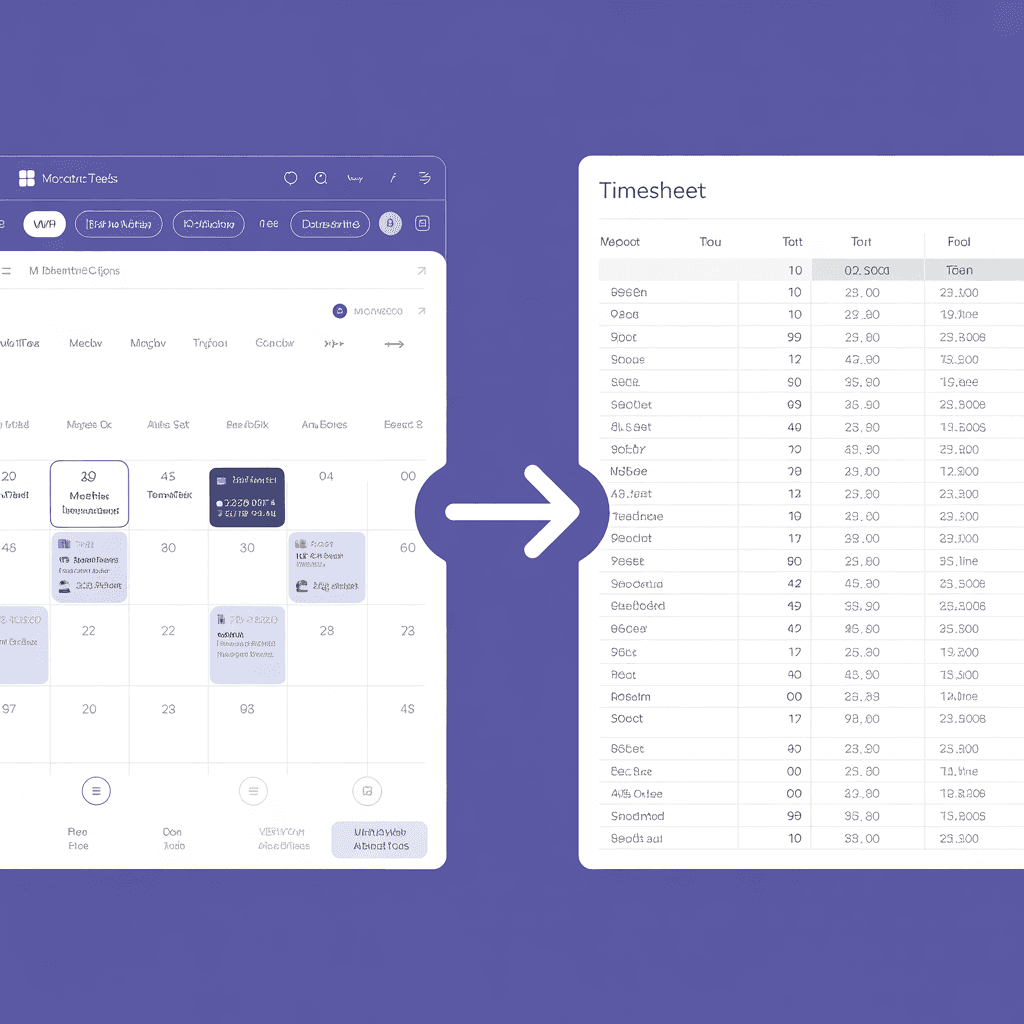
How to Export Microsoft Teams Meetings to a Timesheet
Your Teams calendar already tracks every meeting. Here's how to turn that data into a professional timesheet — manually, with Power Automate, or with an automated tool.